GitHub Copilot Browser Automation: Turn a Coding Agent into a Web Operator

GitHub Copilot is getting very good at the work inside a repository. It can inspect code, change several files, run tests, explain a failure, and prepare a pull request. Then you ask one more question: “Can you open the website and make sure the fix actually works?” That is where a coding agent often loses its hands. The code may be correct while the deployed page is still broken. The dashboard may require a real login. A menu may only appear after JavaScript finishes. The value you need may sit
- 1Copilot can change code and run tests, but BrowserAct is what lets it verify the deployed experience in a real browser.
- 2Reuse an authorized Chrome identity for logged-in dashboards instead of placing passwords, cookies, or one-time codes in prompts.
- 3Route simple pages through extraction first and escalate to browser operation only when rendering, filters, pagination, or login require it.
- 4Give concurrent tasks separate BrowserAct sessions so roles, cookies, page state, and evidence cannot contaminate each other.
- 5Save a successful web journey as a repository Skill so the next Copilot session reruns the verified path instead of rediscovering it.
What is new about Copilot—and what is still missing?
GitHub now supports Agent Skills across Copilot surfaces including the coding agent, Copilot CLI, code review, and agent mode in supported IDEs. A Skill is a folder containing instructions, scripts, and resources that Copilot loads when a task matches it.
That is a major step forward. Instead of explaining the same procedure in every prompt, a team can teach Copilot how it deploys, reviews, or verifies a project.
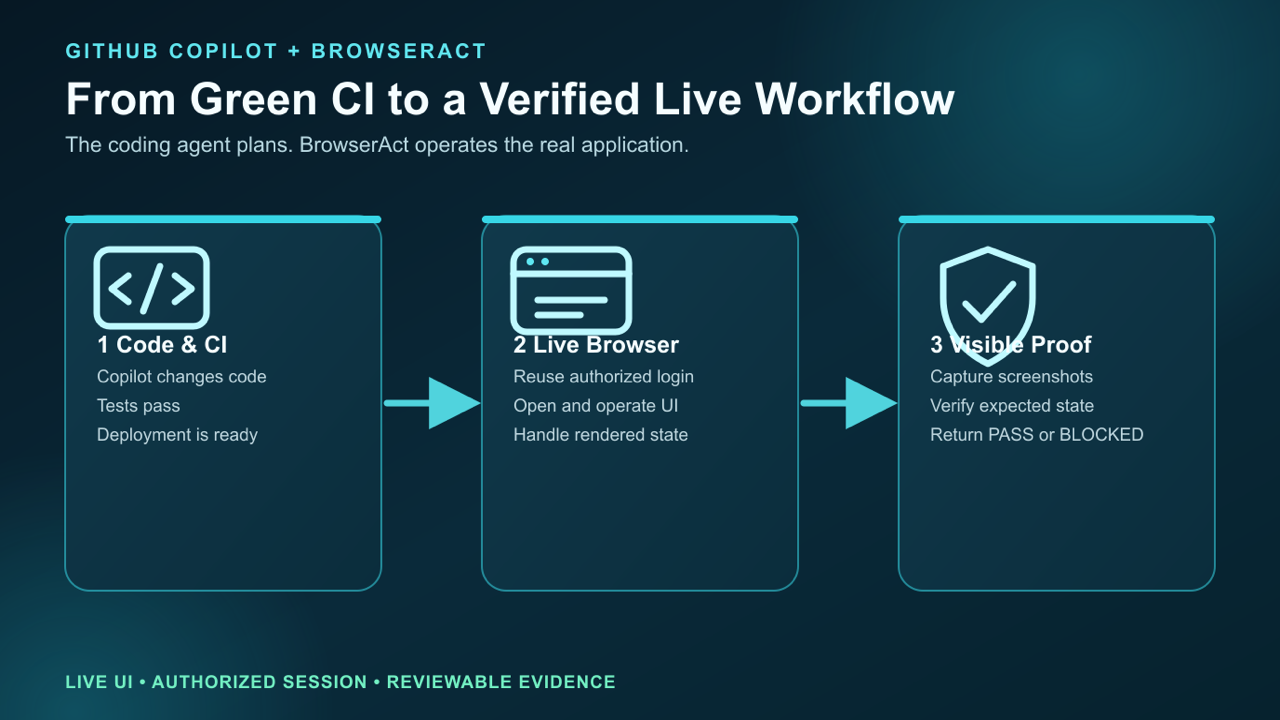
The useful handoff is concrete: Copilot plans the check, while BrowserAct opens the live page and returns visible evidence.
But a Skill only becomes useful when it has an execution capability behind it.
Without BrowserAct, a “check the live website” Skill often falls back to one of four weak outcomes:
- it reads the source code and assumes the UI matches it;
- it fetches raw HTML but misses content rendered in the browser;
- it stops at the login page;
- it tells the developer what to click instead of completing the task.
BrowserAct changes the last mile. Copilot keeps responsibility for the plan and the repository; BrowserAct performs the browser work.
To install the browser capability, give Copilot this instruction:
Install browser-act. Skill source:
https://github.com/browser-act/skills/tree/main/browser-act
Verify it works after installation.
GitHub documents project Skills in .github/skills/, .claude/skills/, and .agents/skills/. BrowserAct can therefore live beside the code and be reviewed like any other project capability.
Try it now: follow the BrowserAct installation guide, then ask Copilot to list the BrowserAct capability before running the first task.
First challenge: the pull request passed, but did the website?
Imagine Copilot fixes an account-menu bug. Unit tests pass and CI turns green. The real task is not finished until somebody opens staging, signs in, clicks the menu, and confirms that Billing, Security, and Sign out appear.
Give Copilot a result-oriented prompt:
Use BrowserAct to verify the account-menu fix on staging.

Target: https://staging.example.com/account
Starting state: use the authorized Chrome profile named staging-qa

Do this:
1. Open the account page.
2. Confirm the dashboard has loaded.
3. Take a screenshot.
4. Open the account menu.
5. Verify Billing, Security, and Sign out are visible.
6. Do not click Sign out and do not save any changes.
7. Return the final URL, screenshots, visible results, and PASS/FAIL/BLOCKED.
The difference is immediate. Copilot is no longer reviewing what the component should render. BrowserAct lets it inspect what a user can actually see and click.
The browser path can also catch failures that repository checks miss:
- the newest deployment did not reach staging;
- an API request failed after the page loaded;
- the element is present but hidden under another layer;
- the user role does not have the expected menu item;
- a cookie banner or modal blocks the interaction.
This is where BrowserAct is different from another block of prompt instructions. It maintains browser state, exposes an agent-friendly indexed view of the page, performs interactions, and saves evidence from the same session.
Second challenge: the useful page requires login
Many valuable workflows live behind authentication: internal tools, customer-support consoles, analytics dashboards, medical-review systems, finance portals, and e-commerce back offices.
Without a browser identity, Copilot reaches the sign-in screen and stops. The unsafe workaround is to paste credentials or cookies into the prompt. Do not do that.
BrowserAct can reuse an existing, authorized local Chrome profile. The human signs in normally; Copilot receives the browser capability, not the password.
For example, a support team can ask:
Open the customer dashboard with the browser identity support-readonly.
Search for account ACME-1042.
Read the plan, renewal date, and last three failed jobs.
Capture the relevant page state.
Do not edit the account, retry a job, or change billing.
Now the Agent can perform a real internal-web task while the action boundary stays clear.
If the session expires or 2FA appears, BrowserAct can preserve the session and hand control to a person. The person completes the trusted step, and Copilot continues from the same page instead of starting over in a different browser.
This human-in-the-loop path matters in high-value scenarios:
- verifying a transaction in a finance dashboard;
- checking a medical record against an authorized portal;
- reading a government case status;
- confirming an e-commerce refund without issuing it;
- inspecting an internal SaaS account without changing it.
Read How to Let AI Agents Handle Login Safely for the complete identity pattern.
Need an Agent that can work past the login screen? Start with BrowserAct and reuse an authorized browser session instead of putting secrets into the conversation.
Give your agent a real browser, then turn the workflow into a Skill.
- 1. Use browser-act when an agent needs to open, click, scroll, extract, or inspect a live site.
- 2. Use browser-act-skill-forge when the workflow should become reusable across runs and agents.
- 3. Keep the operational boundary simple: automate what the user can already do in the browser.
Third challenge: Copilot needs data from the web, not just one click
Browser automation is not only for testing. It also gives Copilot access to information that does not exist in the repository.
Suppose a developer is building a product-monitoring feature and asks Copilot to collect the current price, stock state, shipping promise, and seller name for 20 product pages.
A normal web request may work for some stores. Others render price and availability after JavaScript, show different content by region, require a search interaction, or return an anti-bot page.
A better BrowserAct workflow uses two levels:
Level 1: extract without opening a full browser
Try protected-page extraction first. If BrowserAct can return the rendered content and the required fields, the task stays fast and lightweight.
Level 2: escalate to browser operation
If the data requires a filter, login, scrolling, pagination, or an interactive search, open an isolated browser session and operate the page.
The prompt can be as concrete as this:
For every product URL in products.csv:
1. Collect title, current price, original price, availability, seller, and URL.
2. Try BrowserAct extraction first.
3. If a required field is missing, open the page in an isolated browser.
4. Record which method succeeded.
5. Save results to product-results.csv and blocked pages to blocked.json.
This routing pattern also works for government notices, SaaS pricing pages, search results, social-media posts, and public financial disclosures. The task begins with the cheapest reliable method and opens a real browser only when the page demands it.
For a deeper comparison, see Web Scraping vs Browser Automation for AI Agents.
Why session isolation matters when Copilot runs several tasks
The fastest way to break browser automation is to let every task share “the current tab.”
Imagine Copilot checks three roles at once: administrator, support agent, and normal customer. If they share cookies and tabs, one task can silently change the state of another.
BrowserAct gives each task a named session and identity:
Task | Browser identity | Session | Output |
Admin menu check |
|
|
|
Support search |
|
|
|
Customer checkout |
|
|
|
This is especially valuable for e-commerce exploration, internal-tool automation, multi-account social work, and regression testing across user roles.
Turn the successful browser path into a reusable Skill
The first successful run is exploration. The second should not require Copilot to rediscover every page.
Once the account-menu check works, save the procedure as a repository Skill:
.github/skills/verify-account-menu/
├── SKILL.md
├── expected-elements.json
├── environments.md
└── report-template.md
The Skill should contain the target environments, allowed browser identities, ordered steps, expected visible states, output fields, and actions that require human approval.
Then the next task becomes simple:
Use the verify-account-menu Skill to test PR #184 on staging.
Copilot loads the project procedure. BrowserAct runs the browser path. The result is repeatable instead of depending on one lucky conversation.
For workflows that should become stable data-collection tools, use BrowserAct Skill Forge. It can help turn an explored website path into a reusable scraper Skill.
From one successful run to a team capability: install the BrowserAct Agent Skill, run the workflow once, then save the verified path in the repository.
Where this combination is most useful
GitHub Copilot plus BrowserAct is a strong fit when the task crosses from code into a live website:
- test a staging or production page after a code change;
- operate an authenticated internal dashboard;
- collect current product, pricing, government, finance, or healthcare information;
- search and filter a dynamic documentation or SaaS site;
- compare several accounts without mixing sessions;
- capture screenshots and visible evidence for a pull request;
- convert a repeated browser task into a versioned Skill.
Copilot remains the coding and reasoning agent. BrowserAct gives it a professional browser arm.
Two Skills, One Repeatable Browser Workflow
Start with live browser execution when the agent needs to understand a page. Move to Skill Forge when the same scraper should run again without re-exploring the site.
Run once with browser-act
Give Codex, Claude Code, Cursor, Windsurf, or another agent a real browser for rendered pages, clicks, scrolling, screenshots, DOM extraction, and network inspection.
Open browser-act SkillPackage with Skill Forge
Explore the site once, verify the extraction path, then generate a callable Skill package that other agents can reuse for batch jobs or scheduled workflows.
Open Skill ForgeFrequently Asked Questions
Can GitHub Copilot use Agent Skills?
Yes. GitHub documents Agent Skills for Copilot coding agent, Copilot CLI, code review, the Copilot app, and agent modes in supported IDEs.
Does BrowserAct replace Playwright or Cypress?
No. Keep deterministic tests for stable, maintained flows. Use BrowserAct when the Agent must understand a changing page, reuse a live login, explore an unfamiliar workflow, recover from unexpected state, or collect current web information.
Can Copilot use my logged-in browser?
It can use an authorized BrowserAct identity or local Chrome profile. Do not paste passwords, cookies, or one-time codes into prompts.
Can BrowserAct scrape data as well as click pages?
Yes. Use extraction for pages that can be read directly, and escalate to a real browser for JavaScript rendering, filters, login, pagination, and other interactive state.
What happens when CAPTCHA or 2FA appears?
The safe workflow pauses and hands the same browser session to a person. After the person completes the trusted step, the Agent resumes the bounded task.

Relative Resources

Claude Code Browser Automation: Run Protected Web Tasks

Codex Browser Automation: Add a Reliable Web Execution Layer

Windsurf Browser Automation: Test Logged-In Apps

OpenCode Browser Automation: Run Multi-Model Web Tasks with BrowserAct
Latest Resources

OpenCode Permissions for Browser Automation Safety

OpenCode Skills Browser Automation: Reusable Web Workflows

Kimi Code Token Usage: Why 1M Context Still Needs BrowserAct
